

IOS & ANDROID App
How to add the app to your smartphone?

TUTORIAL
Select the Tutorial for Your Device

TUTORIAL: iOS Apple
- Launch Safari on your iPhone or iPad.
- Go to our website's homepage (www.camecompany.com) ←
- Tap the Share icon (the square with an arrow pointing out of it) at the bottom of the screen SEE IMAGE
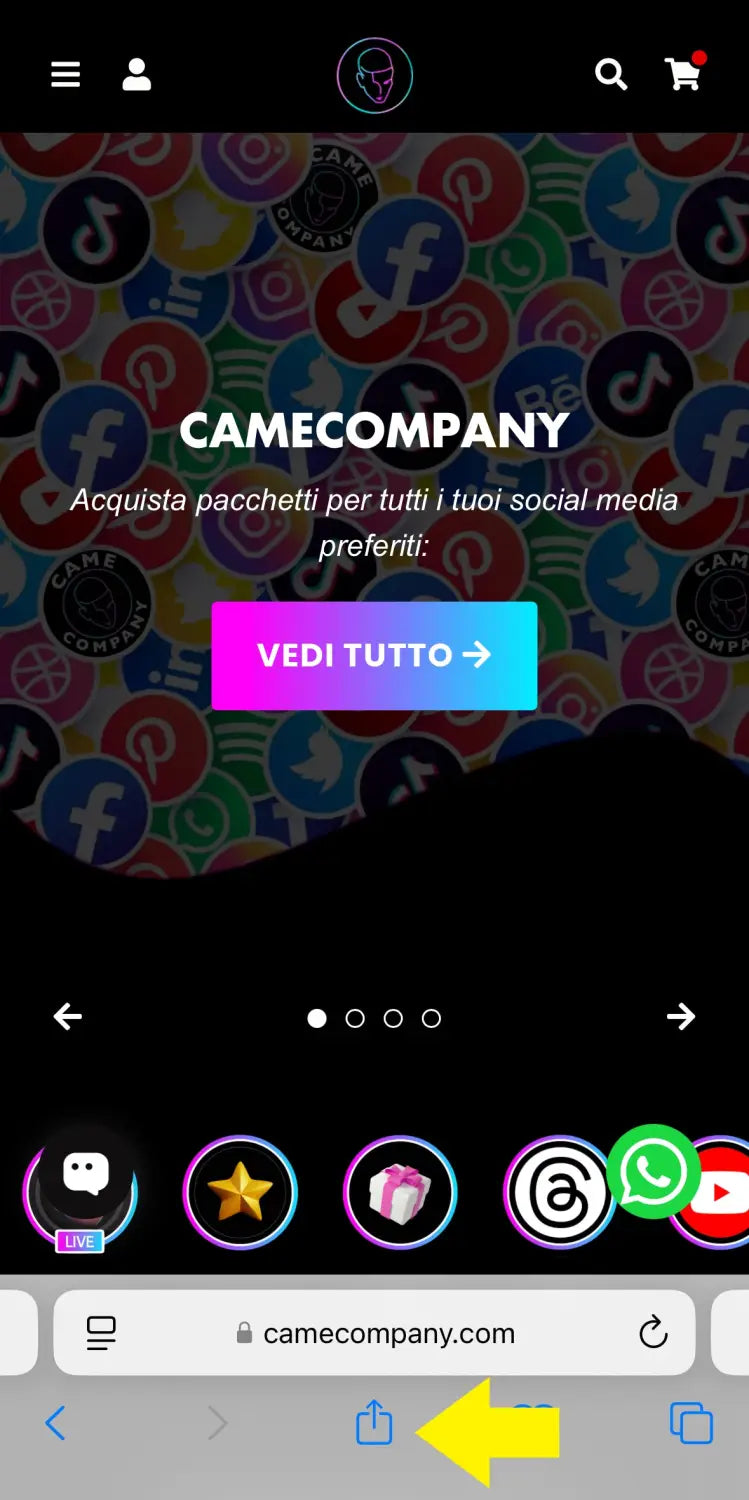
- Scroll down to the list of actions and tap Add to Home Screen.

- Type a name you prefer for our site or leave the standard name.

- Tap Add in the top right corner of the screen

TUTORIAL: Android
- Open the Chrome app on your phone.
- Go to our website's homepage (www.camecompany.com) ←
- Once the website is loaded, open the Chrome Settings menu by tapping the three vertical dots in the top right SEE IMAGE

- In Settings, click on Add to Home screen

- A preview of the icon will appear on the screen. Click on Add/Install

- A screen will allow you to automatically place the icon. Tap "Add automatically" to place the icon on the home screen
If you have questions or problems with this article, please visit or contact us!


